If your webcam keeps freezing during video calls, the cause is usually one of four things: USB bandwidth limits, outdated drivers, background lighting software, or network bandwidth throttling. The good news is each of these has a straightforward fix you can try today.
A frozen webcam feed is more than annoying. It makes you look unprepared on important calls and disrupts streams in front of live audiences. Before you buy a new camera, work through this checklist. Most issues that cause a webcam to keep freezing are software-related and cost nothing to fix.
Why Your Webcam Keeps Freezing in the First Place
Webcams rely on three things working together: a stable USB connection, updated software, and enough processing power. When any one of these falters, the video feed stutters or a webcam keeps freezing entirely mid-conversation.
Understanding which layer is failing helps you target the right fix instead of guessing why your webcam keeps freezing. Let’s break down the diagnosis, then move into solutions.
Common Culprits Behind a Frozen Webcam Feed
- USB bandwidth conflicts: Too many devices sharing one USB hub or port, which is a leading reason a webcam keeps freezing on busy setups.
- Outdated or corrupt drivers: Windows or macOS updates can break camera compatibility.
- Background software conflicts: Lighting apps, virtual backgrounds, or filters competing for resources.
- Network throttling: Your internet connection can’t keep up with video upload demands.
- Overheating hardware: A laptop running hot can throttle performance across the board.
Fix 1: Check Your USB Connection and Bandwidth
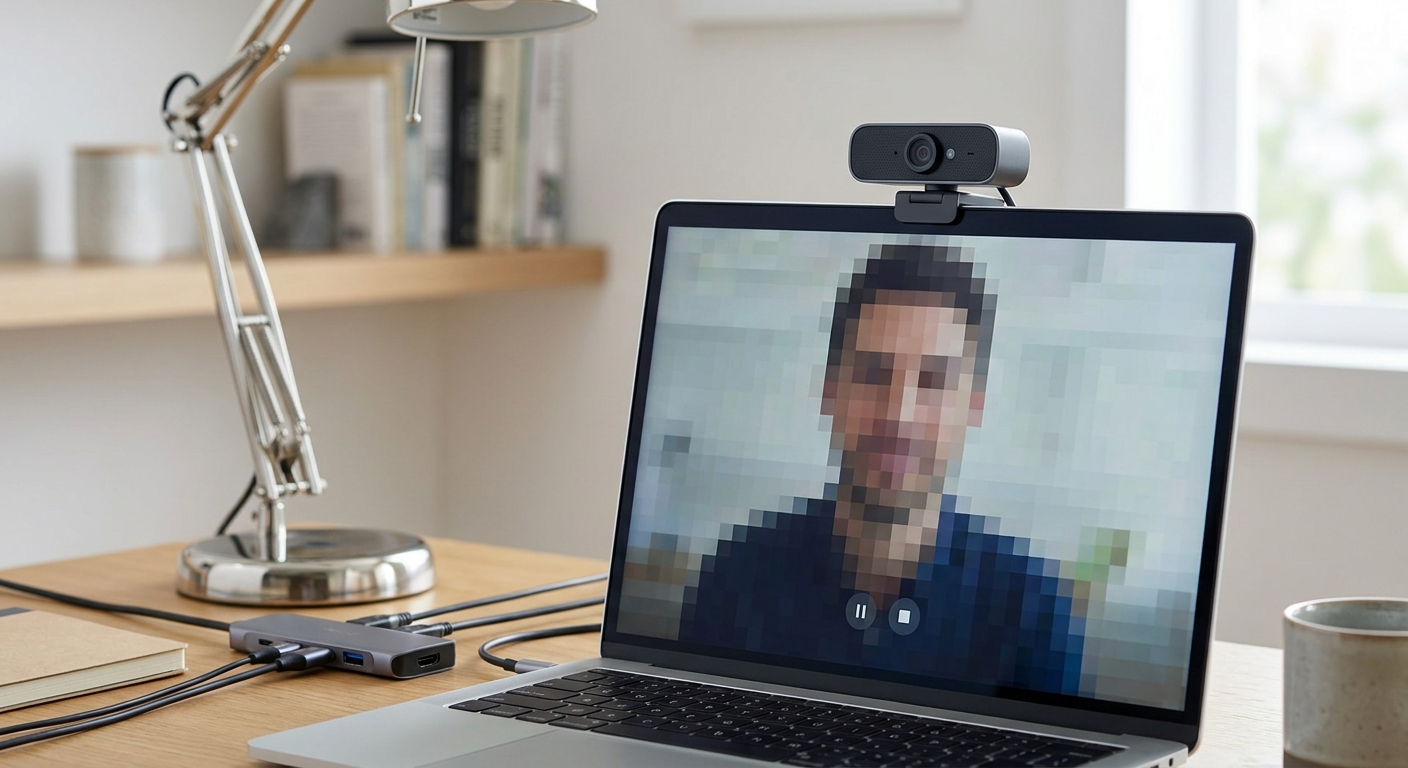
USB bandwidth is the most frequent reason a webcam keeps freezing mid-call. If your camera shares a hub with a keyboard, mouse, and external drive, it may not get consistent data flow, and the webcam keeps freezing as a result.
Plug your webcam directly into a laptop’s USB port rather than through a hub. If you rely on multiple peripherals, consider reading our guide on USB-C hub vs docking station options to find a setup that handles bandwidth more reliably.
Also try switching ports. USB 3.0 ports (often blue inside) handle higher data rates than older USB 2.0 ports, which can stop a webcam from freezing during longer calls.
Fix 2: Update or Reinstall Your Webcam Drivers
Outdated drivers are a classic cause of a webcam that keeps freezing, especially after a recent operating system update. Visit your webcam manufacturer’s website and download the latest driver package.
If updating doesn’t help, uninstall the driver completely, restart your computer, and let Windows or macOS reinstall it automatically. This clears out corrupted driver files that cause intermittent freezing.
Steps to Reinstall a Webcam Driver
- Open Device Manager (Windows) or System Report (Mac).
- Locate your webcam under “Cameras” or “Imaging devices.”
- Right-click and select “Uninstall device.”
- Restart your computer.
- Reconnect the webcam and let the system reinstall drivers.
Fix 3: Close Background Lighting and Filter Software
Many creators run lighting adjustment tools, virtual background apps, or beauty filters alongside their video call software. These programs compete for the same processing resources as your camera driver, which is often why a webcam keeps freezing during live streams.
Close any unnecessary background apps before joining a call. If you use a virtual background feature, try disabling it temporarily to see if the freezing stops. Streamers often run OBS alongside multiple overlays, which can overload lower-powered laptops.
Fix 4: Diagnose Bandwidth Throttling From Your Network
Sometimes the webcam itself is fine, but your internet connection can’t sustain the video upload speed required. This shows up as freezing, pixelation, or audio dropping out of sync, and it’s a common reason a webcam keeps freezing even on expensive hardware.
Run a speed test during a call to check your upload bandwidth. If other devices are streaming or downloading simultaneously, pause them. Switching from Wi-Fi to a wired ethernet connection often resolves this instantly.
Fix 5: Restart the Video Call App and Clear Its Cache
Video conferencing apps like Zoom, Teams, and Google Meet sometimes develop memory leaks during long sessions. This causes the camera feed to freeze even though the hardware works fine, so a webcam keeps freezing purely due to app-level bugs.
Fully quit the app rather than just closing the window, then relaunch it. Clearing the app’s cache folder periodically also prevents buildup that slows performance over time.
Fix 6: Check for Overheating
A laptop running too hot will throttle its processor, which affects every connected peripheral, including your webcam. If your device feels warm to the touch or fans are running loudly, overheating could be the hidden reason your webcam keeps freezing.
For a deeper look at this issue, see our guide on fixing laptop overheating problems. Keeping your device cool improves webcam reliability along with overall performance.
Fix 7: Test With a Different USB Port, Cable, or Computer
Sometimes the issue isn’t software at all. A worn-out USB cable or a failing port can cause data loss that looks exactly like a webcam that keeps freezing.
Swap in a different cable if your webcam uses a detachable one. Try the camera on another computer if possible. If the freezing disappears, the original port or cable was the culprit all along.
When to Consider Replacing Your Webcam
If you’ve tried all seven fixes and your webcam still keeps freezing, the hardware itself may be failing. This is more common in older models that have been used daily for years.
Before buying new electronics, it’s worth building good charging and power habits for your remote work setup. Check out our guide on best portable chargers for travel if you work from multiple locations and need reliable backup power for your devices.
Frequently Asked Questions
Why does my webcam keep freezing only on certain apps?
If your webcam keeps freezing only in one app, like Zoom but not Teams, the issue is likely software-specific rather than hardware-related. Try updating that app or reinstalling it completely.
Can a USB hub cause my webcam to keep freezing?
Yes. USB hubs split bandwidth across all connected devices. A webcam sharing a hub with other peripherals may not receive enough consistent bandwidth, which is a common reason a webcam keeps freezing or drops frames.
Does low internet speed cause webcam freezing even with a good camera?
Absolutely. A webcam keeps freezing when your upload speed can’t handle the video data being sent. Even premium cameras will stutter on a slow or congested connection.
What is the fastest way to stop a webcam from freezing during a call?
If a webcam keeps freezing in the middle of an important call, quickly unplug and replug it into a direct USB port, close background apps, and restart the video call software. This resolves most on-the-spot freezing issues within seconds.