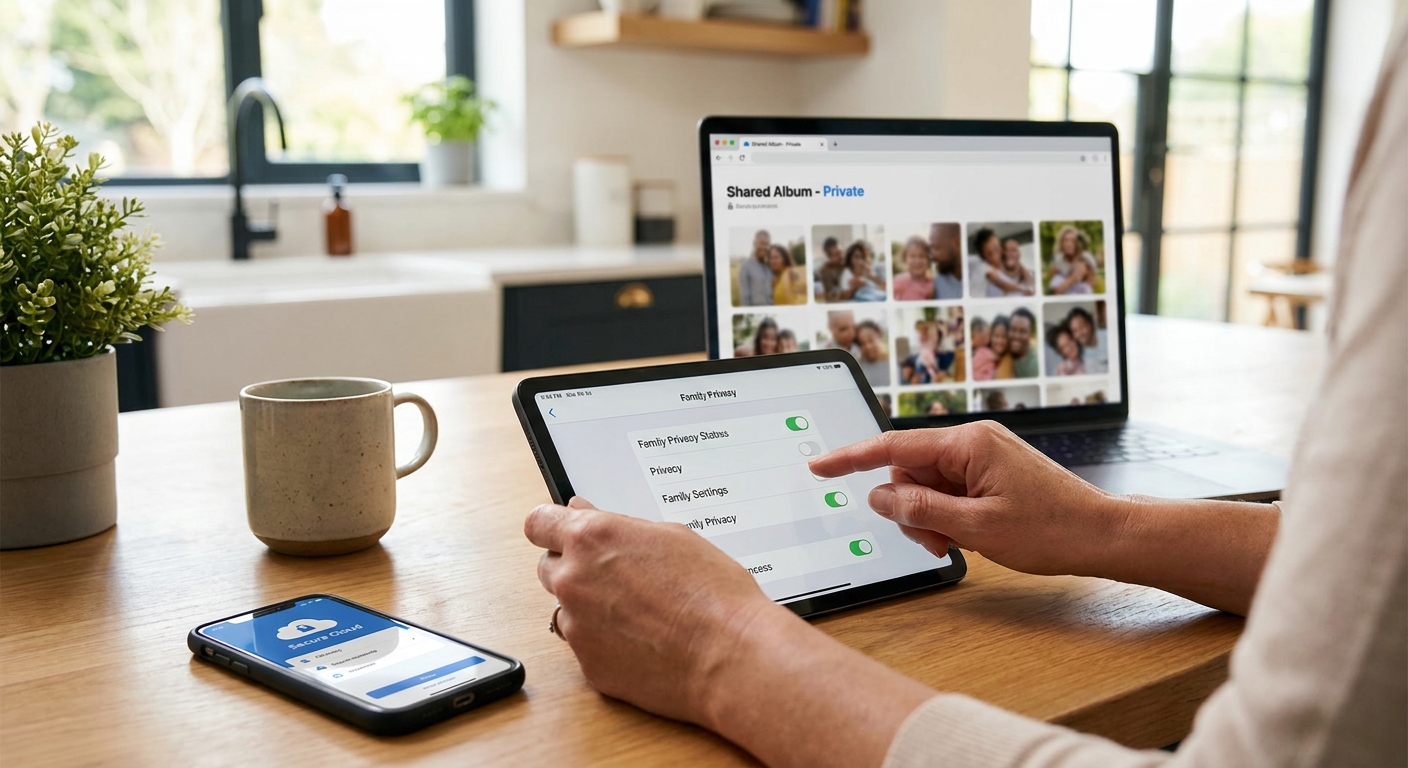
Secure family photo sharing means controlling exactly who can view, download, or reuse the photos you post of your kids, rather than trusting a platform’s default settings to do it for you. Most cloud photo apps are built for convenience first and privacy second. That gap is exactly where strangers, data scrapers, and AI training tools slip in.
This guide walks you through locking down shared albums on iCloud, Google Photos, and Amazon Photos, step by step, so your family’s memories stay inside your circle and your approach to secure family photo sharing actually holds up.
Why Secure Family Photo Sharing Matters Now
A few years ago, the biggest risk with shared photo albums was an awkward relative seeing an unflattering shot. Today, the stakes are higher, and secure family photo sharing has become a real household priority.
Public or loosely shared albums can be scraped by bots that harvest images for facial recognition databases or AI model training. Metadata embedded in photos, like location and timestamps, can reveal where your kids go to school or play.
- Scrapers scan public links and social feeds for training data.
- Predators use public albums to identify routines and locations.
- Data brokers resell scraped images and metadata to advertisers.
None of this means you should stop sharing photos with grandparents. It means you should share smarter, with secure family photo sharing habits built in from the start.
Lock Down iCloud Shared Albums
Apple’s Shared Albums feature is convenient, but its default link-sharing option is riskier than most parents realize.
Steps to secure your iCloud albums
- Open the Photos app and go to Shared Albums.
- Turn off “Public Website” for every album, since this creates a link anyone can open.
- Invite people by email or phone number instead of sharing a link.
- Review the subscriber list regularly and remove anyone who no longer needs access.
- Disable location data before adding photos, using the Photos share sheet options.
Apple also encrypts iCloud Shared Albums in transit, but access control is still your responsibility. A private album is only private if the invite list stays small and current.
Configure Google Photos for Family-Only Access
Google Photos offers strong sharing controls, but its “link sharing” feature is the most common privacy leak.
Anyone with that link can view the album, and links occasionally get forwarded, indexed, or leaked without you knowing.
Tighten your settings
- Use “Shared with specific people” instead of generating a shareable link.
- Turn off partner sharing unless you actively use it with a trusted co-parent.
- Disable face grouping suggestions if you don’t want Google building a facial profile of your child.
- Check the Sharing tab under settings to audit every album with an active link.
Google also lets you set an expiration on shared links in some cases. If you must send a link, set it to expire rather than leaving it open indefinitely.
Amazon Photos: Family Vault Settings
Amazon Photos bundles storage with Prime membership, and its Family Vault feature makes sharing between household members easy.
The tradeoff is that Family Vault access is broad by default. Anyone added to your household group can see everything in shared albums, not just curated selections.
How to tighten Amazon Photos
- Go to Account Settings and review who is in your Amazon Household group.
- Create separate albums for sensitive photos instead of dumping everything into one shared library.
- Turn off “auto-save” for other people’s uploads if you don’t recognize every contributor.
- Remove former household members promptly after a divorce, move, or falling out.
Amazon Photos doesn’t offer granular link expiration like Google, so avoid public links entirely and stick to household-only sharing.
Strip Metadata Before You Upload
Every photo carries invisible data. This includes GPS coordinates, device model, and timestamp.
Before uploading kids’ photos anywhere, strip this metadata using your phone’s built-in export options or a dedicated metadata scrubber. On iPhone, choose “All Photos Data” removal when sharing through certain apps. On Android, many gallery apps offer a “remove location” toggle before sending.
This single habit blocks one of the easiest ways strangers pinpoint a child’s school, home, or daily routine from a single innocent post.
Extra Layers of Protection
Secure family photo sharing doesn’t stop at album settings. A few habits compound your protection significantly.
- Enable two-factor authentication on every cloud account tied to family photos. If you haven’t compared authentication methods lately, this guide on passkeys vs passwords explains which option offers stronger protection in 2026.
- Audit browser extensions installed on any device used to upload photos, since some extensions harvest more data than they should. This breakdown of browser extension permissions risks shows which permissions to avoid.
- Retire old phones properly before handing them down, since forgotten cloud syncs can leak old photo libraries. See old smartphone security risks for a full checklist.
- If you use smart home cameras that also feed a cloud photo app, make sure those feeds are locked down too, using this guide to smart home camera hacking prevention.
Each of these steps closes a small gap. Together, they build a much harder target for anyone trying to access your family’s private images.
A Quick Sharing Checklist
Use this short checklist before you invite anyone new to a shared album:
- Is the album invite-only, with no public link active?
- Have you reviewed the subscriber or household list this month?
- Is location metadata stripped from photos before upload?
- Is two-factor authentication turned on for the account?
- Would you be comfortable if a stranger saw this exact photo out of context?
If any answer is no, pause and fix it before you tap share.
Conclusion
Secure family photo sharing is less about avoiding cloud services and more about configuring them correctly. iCloud, Google Photos, and Amazon Photos all offer the tools you need. You just have to turn off the defaults built for convenience and turn on the settings built for privacy.
Take twenty minutes this week to audit your shared albums. Your kids’ photos will still reach grandma, just not a data scraper.
Frequently Asked Questions
Can AI companies really scrape photos from shared cloud albums?
Public or link-based albums can be indexed or scraped if the link is ever shared, leaked, or left open. Invite-only albums with no public link are far harder to reach, which is why disabling link sharing matters for secure family photo sharing.
Is it safe to share kids’ photos on social media instead of cloud albums?
Social platforms generally offer less control than dedicated cloud photo services. Even “friends only” posts can be screenshotted or reshared, so private cloud albums with invite-only access remain the safer choice for sensitive family photos.
How often should I review who has access to shared family albums?
Check your subscriber or household lists at least once a season, and immediately after any major life change like a divorce, move, or falling out with a family member. Making this a habit is one of the simplest ways to keep secure family photo sharing intact over time.