If your laptop is overheating, the good news is that most of the best laptop overheating fixes cost little or nothing and take just minutes to try. Overheating usually comes from blocked airflow, dust buildup, or software running harder than it should, not a dying machine. Before you book a repair or start shopping for a replacement, work through the laptop overheating fixes below to find out what’s really going on.
Why Laptops Overheat in the First Place
Every laptop generates heat while it works. A healthy cooling system pulls that heat away through vents and fans. When something blocks that process, temperatures climb fast, and simple laptop overheating fixes stop working as well as they should.
Common culprits include dust clogging the fans, using the laptop on soft surfaces, aging thermal paste, or background apps that quietly overwork the processor. Once you know the cause, choosing the right laptop overheating fixes becomes much easier.
Signs You Need Laptop Overheating Fixes Right Away
Not sure if heat is really the problem? Watch for these warning signs that call for laptop overheating fixes sooner rather than later:
- The fan runs loudly and constantly, even during light tasks.
- The laptop feels hot to the touch, especially near the vents or underside.
- Performance slows down or apps freeze unexpectedly.
- The screen shows sudden shutdowns or restarts.
- You notice a burning smell or the case feels warped.
If you spot two or more of these, it’s time to apply laptop overheating fixes before the issue damages internal components.
8 Laptop Overheating Fixes That Actually Work
Try these laptop overheating fixes in order. Most people solve their overheating problem within the first four steps.
1. Clean the Vents and Fans
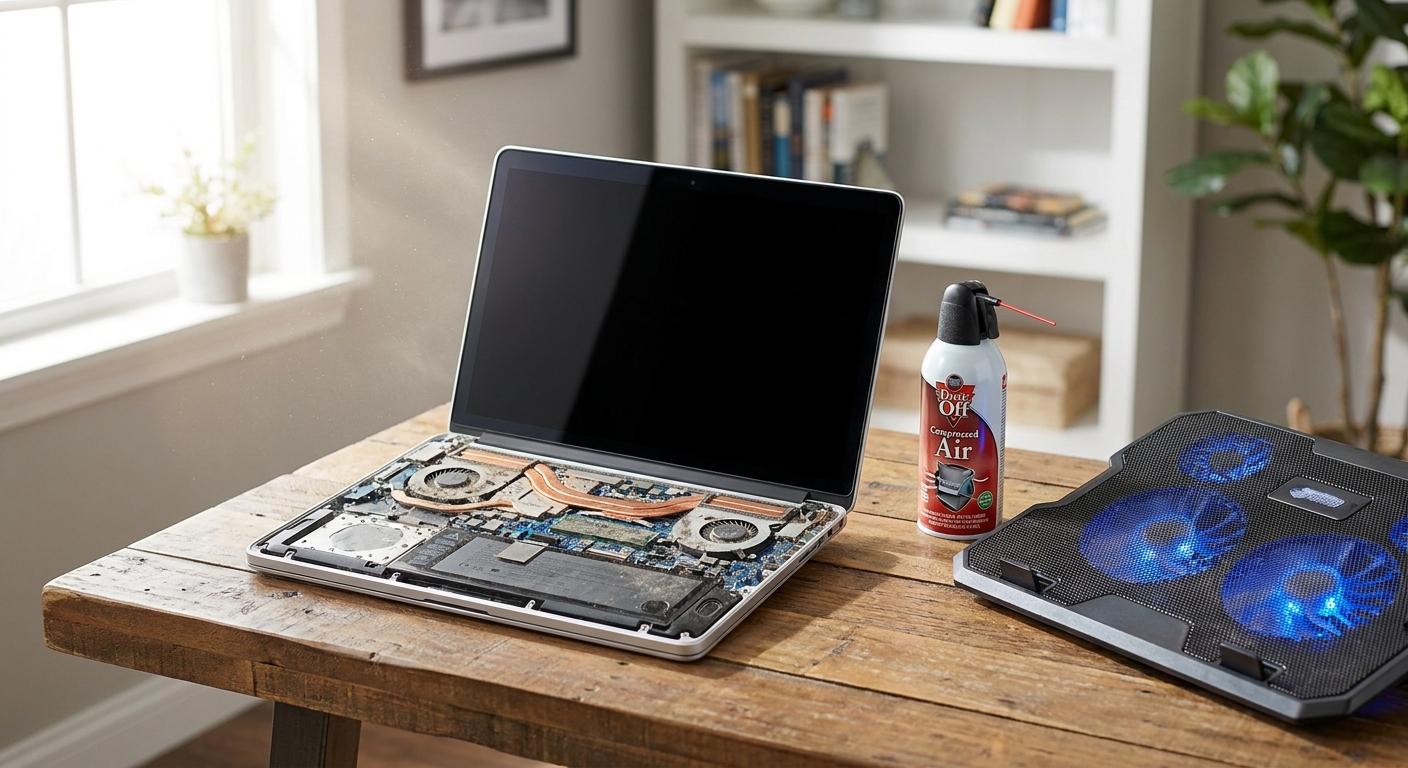
Dust is the number one cause of laptop overheating, so this is one of the simplest laptop overheating fixes available. Use a can of compressed air to blow out the vents while the laptop is powered off. Do this every three to six months for best results.
2. Use a Hard, Flat Surface
Beds, couches, and pillows block airflow to the bottom vents. Always place your laptop on a desk, table, or hard tray so air can circulate freely underneath.
3. Invest in a Cooling Pad
A cooling pad adds extra airflow beneath the chassis. These affordable accessories are especially helpful for gaming laptops or older machines with weaker fans, and they’re among the easiest laptop overheating fixes to set up without any technical skill.
4. Check Task Manager for Runaway Processes
Open Task Manager (Windows) or Activity Monitor (Mac) and sort by CPU usage. If one app is eating resources for no reason, close it or update it. Background updates and browser tabs are frequent offenders, and clearing them is one of the quickest laptop overheating fixes for a slow, hot machine.
5. Update Your Drivers and BIOS
Outdated graphics or chipset drivers can cause your hardware to work inefficiently, generating extra heat. Check your manufacturer’s website regularly and install the latest stable updates.
6. Adjust Power and Performance Settings
Switching from “high performance” to “balanced” mode reduces the load on your processor. This small change often lowers temperatures noticeably without hurting everyday performance.
7. Reapply Thermal Paste (For Older Laptops)
Thermal paste dries out after a few years, reducing its ability to transfer heat away from the CPU. If your laptop is more than three years old and still runs hot after cleaning, reapplying thermal paste can make a real difference. This step requires some technical comfort, so consider a professional if you’re unsure.
8. Manage Your Power Setup
Charging cables and adapters left tangled near vents can trap heat. Keeping your workstation organized also matters if you rely on external devices. If you’re juggling multiple monitors and accessories, our guide on choosing between a USB-C hub and a docking station can help you build a cleaner, cooler setup that doesn’t crowd your laptop’s airflow.
When to Consider Professional Repair
If you’ve tried every fix above and your laptop still overheats, the fan motor or internal components may be failing. In that case, a certified repair technician can inspect the hardware safely and apply laptop overheating fixes that go beyond routine maintenance.
Persistent overheating despite clean vents and updated software often points to a fan replacement or a deeper hardware issue.
Preventing Overheating for Good
Prevention is easier than repeated troubleshooting. Build these habits into your routine so you rarely need laptop overheating fixes again:
- Clean your laptop every few months, even if it seems fine.
- Avoid working in direct sunlight or hot rooms for long stretches.
- Close unused browser tabs and background apps regularly.
- Use a surge-protected outlet or a reliable smart plug that actually works for your devices to avoid power fluctuations that stress your hardware.
If you work remotely and rely on stable power during outages, it’s also worth comparing a portable power station versus a generator to keep your laptop running safely without overloading its power system.
Other Hardware Problems Worth Ruling Out
Overheating sometimes travels with other tech headaches. If your external drive keeps disconnecting during heavy use, check our guide on a portable SSD not showing up for similar troubleshooting logic. And if your internet connection drops whenever your laptop works hard, our article on a WiFi router that keeps disconnecting covers fixes that pair well with a cooler, more stable laptop setup.
Frequently Asked Questions
What is the fastest laptop overheating fix I can try right now?
Shut down the laptop, let it cool, then clean the vents with compressed air. Among all laptop overheating fixes, this single step resolves the problem for many users within minutes.
Is it normal for a laptop fan to run constantly?
Occasional fan noise during heavy tasks is normal. Constant, loud fan activity during light use usually signals dust buildup or a background process overworking the CPU, and it’s a strong sign you need laptop overheating fixes soon.
Can overheating permanently damage my laptop?
Yes. Repeated overheating can shorten battery life, warp components, and cause premature hardware failure. Addressing it early with proper laptop overheating fixes protects your investment.