If your portable SSD not showing up on your computer, the problem is usually a loose cable, a missing drive letter, an outdated driver, or a format mismatch between Windows and Mac. The good news is that most of these issues take just a few minutes to fix without losing any data.
Portable SSDs are supposed to be plug-and-play. So when your computer suddenly stops recognizing one, it can feel alarming, especially if you have important files stored on it. Before you panic or assume the drive is dead, work through the fixes below. They are listed roughly in order from quickest to more advanced.
1. Check the Cable and Port First
Cable issues are the most common reason a portable SSD not showing up problem happens. USB-C and USB 3.0 cables wear out faster than people expect, especially if you travel with them.
- Try a different USB cable, ideally one you know works with another device.
- Plug the SSD into a different USB port on your computer.
- Avoid USB hubs or docking stations at first to rule out a passthrough issue. If you regularly rely on one, our guide on USB-C hubs vs docking stations explains which setup is more reliable for external drives.
- Test the drive directly on a laptop port rather than a desktop front panel, which sometimes has weaker power delivery.
2. Test the Drive on Another Computer
This step tells you whether the issue is with the SSD itself or with your computer. Plug the drive into a second laptop or desktop, ideally running a different operating system.
If the drive shows up on another machine, the fault lies with your original computer’s ports, drivers, or settings. If it still fails to appear anywhere, the SSD or its enclosure may have a hardware fault.
3. Check Disk Management on Windows
Sometimes a portable SSD not showing up in File Explorer is still detected by Windows, just without a visible drive letter.
- Right-click the Start menu and select Disk Management.
- Look for your SSD in the list of disks at the bottom of the window.
- If it appears but has no letter, right-click it and choose Change Drive Letter and Paths, then assign one.
- If the drive shows as “Unallocated,” it may need to be initialized or reformatted, which we cover below.
4. Check Disk Utility on Mac
On a Mac, an external drive can fail to appear on the desktop but still be visible to the system.
- Open Finder, then go to Preferences and confirm external disks are set to show on the desktop.
- Open Disk Utility from Applications > Utilities.
- Check whether the drive appears in the sidebar, even if it’s grayed out.
- If it appears but won’t mount, click Mount in the toolbar.
5. Update or Reinstall USB and Storage Drivers
Outdated drivers are a frequent, overlooked cause of a portable SSD not showing up on Windows machines. Windows Update usually keeps these current, but manual updates sometimes help.
Open Device Manager, expand Disk drives and Universal Serial Bus controllers, then right-click each USB entry and select Update driver. Restart your computer afterward, even if no update is found, since a fresh driver reload can resolve detection glitches.
6. Assign a Drive Letter or Reformat (Carefully)
If your SSD was formatted for one operating system, it may not show up correctly on another. For example, a drive formatted as APFS for Mac won’t natively work on Windows without extra software.
Before reformatting, back up any recoverable data using a data recovery tool or by testing the drive on its original operating system. Once you’re confident the data is safe, format it using exFAT, which works across both Windows and Mac. This step erases the drive, so only use it as a last resort.
7. Rule Out Power Delivery Problems
Some portable SSDs, especially NVMe-based models, draw more power than older USB ports can supply. This is similar to how a power bank can fail to charge a phone when the output doesn’t match the device’s power draw.
Try connecting the SSD directly to a laptop rather than through a hub, and avoid USB extension cables where possible. If your desktop has both USB 2.0 and USB 3.0 ports, always choose the blue USB 3.0 port for better power and speed support.
8. Check for Conflicts With Other Network or Storage Devices
Occasionally, background software tied to networked drives or cloud sync tools can interfere with how your system detects new storage. If you use network-attached storage alongside portable drives, our comparison of NAS vs cloud storage options can help you decide which setup reduces conflicts and confusion between drive types.
Similarly, unstable networking hardware can sometimes cause system-wide slowdowns that make external devices feel unresponsive. If you’re also dealing with dropped connections, see our tips on fixing a WiFi router that keeps disconnecting.
When to Consider the SSD Might Be Failing
If you’ve tried every fix above and the drive still won’t appear on any computer, it may have a hardware issue. Unusual clicking sounds, extreme heat, or a drive that appears briefly then disconnects are signs of a failing enclosure or controller.
In these cases, professional data recovery services are your safest option if the data matters. Going forward, consider pairing your storage strategy with a reliable desktop setup. If you’re also upgrading your PC, our guide on choosing a graphics card is a useful next read for building a more capable machine.
Frequently Asked Questions
Why is my portable SSD not showing up but the light is on?
A powered-on light means the drive is receiving power, but that doesn’t guarantee data connectivity. This usually points to a cable, port, or driver issue rather than a dead drive, so work through the fixes above starting with the cable.
Can a portable SSD stop working suddenly without warning?
Yes. SSDs can fail abruptly due to controller issues, even though they have no moving parts. Regular backups reduce the risk of losing important files if this happens.
Do I need special software to use a portable SSD on both Mac and Windows?
Not if the drive is formatted as exFAT, which both operating systems can read and write natively. Drives formatted as NTFS or APFS need extra software or reformatting for full cross-platform compatibility.
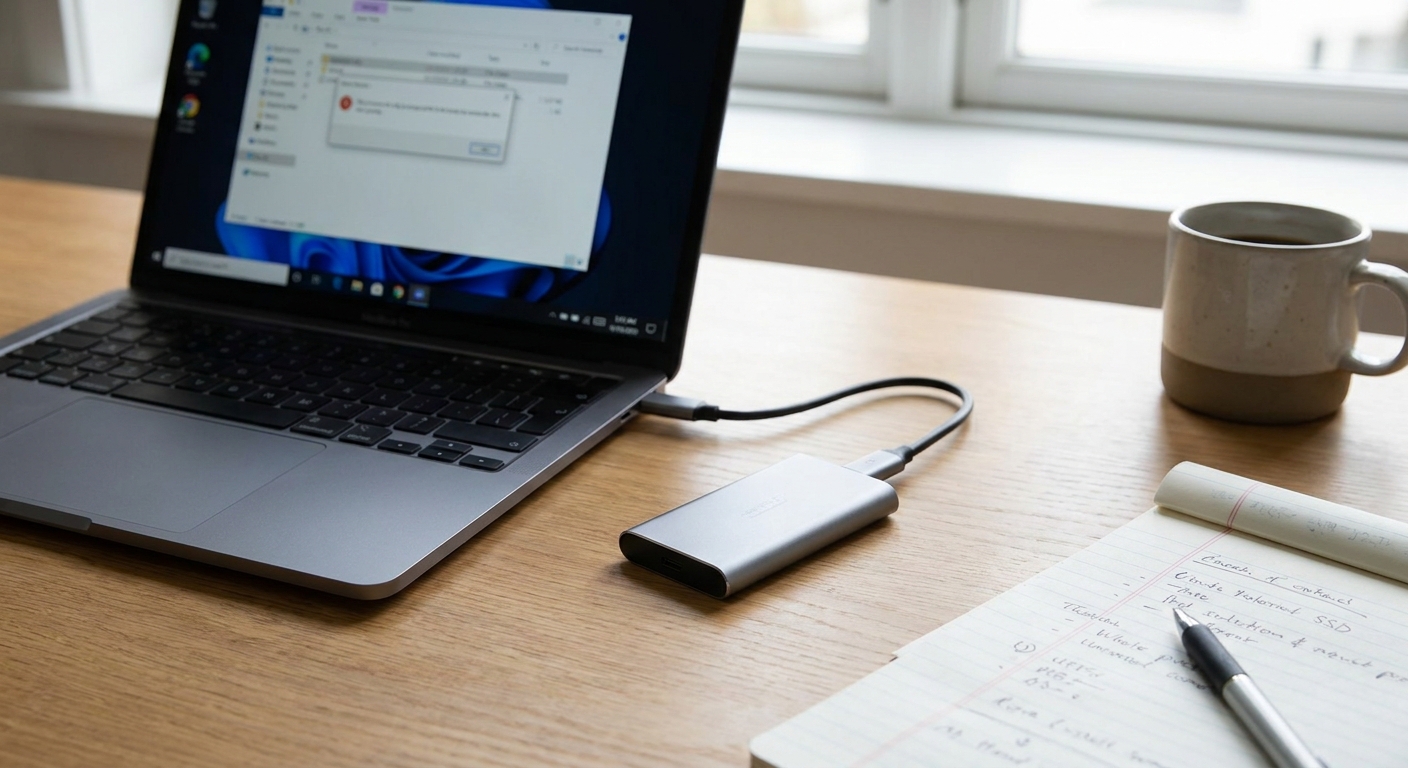
A sleek portable SSD drive with a USB-C cable connected to a laptop on a modern desk, with the laptop screen showing a file explorer window
Portable SSD not showing up on a laptop despite being connected via USB-C cable
[“portable SSD”, “external storage”, “USB troubleshooting”, “Windows tips”, “Mac tips”, “data recovery”]