When comparing password manager vs browser autofill, dedicated password managers are the safer choice for most people because they add encryption, breach monitoring, and cross-platform security that browsers simply don’t offer. Browser autofill is convenient and free, but that convenience comes with trade-offs you should understand before trusting it with your entire digital life.
Millions of people rely on Chrome, Safari, or Edge to remember their passwords. It feels secure because it’s built into the browser you already trust. But “built-in” doesn’t always mean “built for security.” Let’s break down how each option actually works, where the risks hide, and which one deserves a spot in your security toolkit.
How Browser Autofill Actually Works
Browser autofill stores your usernames and passwords locally, often syncing them to your account in the cloud. It’s designed for speed and simplicity, not for advanced threat protection.
Most browsers encrypt saved passwords, but the encryption is often tied to your device login or browser profile. If someone accesses your unlocked computer, they can often view saved passwords in plain text within seconds through browser settings.
Browser autofill also tends to lack features like:
- Automatic breach alerts when a saved password appears in a leak
- Strong password generation enforced across every site
- Secure sharing of login credentials with family or coworkers
- Protection against autofill on fake or spoofed login pages
That last point matters more than people realize. Some phishing sites are built to trick autofill into entering credentials on a lookalike domain, handing your password straight to an attacker.
Password Manager vs Browser Autofill: Core Security Differences
Dedicated password managers are purpose-built security tools. They use strong, zero-knowledge encryption, meaning even the company that makes the app can’t read your stored passwords.
Here’s where the real gap shows up in the password manager vs browser autofill debate:
- Encryption standards: Password managers typically use audited, industry-standard encryption with a master password only you know.
- Cross-device support: Most work consistently across Windows, Mac, Android, and iOS, not just one browser ecosystem.
- Security auditing: Many flag weak, reused, or compromised passwords automatically.
- Phishing resistance: Password managers usually match logins to exact domains, reducing accidental autofill on fake sites.
Browser autofill isn’t inherently unsafe for casual browsing, but it was never designed to be a full security system. It’s a convenience feature layered onto a web browser, not a dedicated vault.
The Hidden Risk: One Browser Account, One Point of Failure
If someone gains access to your browser’s sync account, they may gain access to every saved password at once. This is especially risky if that account uses a weak or reused password itself.
Dedicated password managers isolate your credentials behind a separate master password and often support two-factor authentication specifically for the vault. That creates an additional barrier an attacker has to break through.
This layered approach matters just as much online as it does at home. Just like comparing a smart doorbell vs alarm system for physical security, digital security works best with multiple layers instead of one single point of defense.
When Browser Autofill Might Be “Good Enough”
Not everyone needs enterprise-grade protection. If you use one device, enable device encryption, and avoid reusing passwords, browser autofill can work reasonably well for low-risk accounts.
Think newsletter sign-ups or accounts with no sensitive financial or personal data attached. For anything tied to banking, email, shopping, or health data, a dedicated manager is the stronger choice.
This mirrors how people think about other personal data today. Just as readers research who sees their smart scale health data, it’s worth applying the same scrutiny to where your passwords live.
Signs You Should Switch to a Password Manager
Certain habits are strong indicators that browser autofill isn’t cutting it anymore. Consider switching if any of these sound familiar:
- You reuse the same password across multiple sites.
- You’ve never checked whether your passwords appeared in a data breach.
- You share logins with family members through text or email.
- You use the same browser profile on a shared or public computer.
- You manage logins for financial accounts, work tools, or smart home devices.
If you’re already auditing your digital footprint, it’s worth extending that mindset. For example, many readers who research who can see their pet’s GPS data or what their vehicle tracks are often the same people who benefit most from stronger password hygiene overall.
Making the Switch Without the Headache
Moving from browser autofill to a password manager is easier than most people expect. Most managers offer a built-in import tool that pulls saved logins directly from your browser.
Once imported, you can gradually update weak or reused passwords using the manager’s built-in generator. Many also flag duplicate passwords automatically, so you don’t have to hunt for them manually.
If you’re documenting valuables or sensitive records elsewhere, the same layered-security logic applies. Our guide on home inventory app security covers similar principles for protecting claim and asset data.
Frequently Asked Questions
Is browser autofill safe to use for banking passwords?
It’s not recommended. Banking logins carry high risk, and browser autofill lacks breach monitoring and strong phishing protections that dedicated password managers include.
Can hackers see passwords saved in my browser?
If someone accesses your unlocked device or browser sync account, saved passwords can often be viewed in plain text. This is one of the biggest risks in the password manager vs browser autofill comparison.
Do I need a paid password manager, or is a free one enough?
Many free password managers offer solid core protection, including encryption and password generation. Paid tiers usually add extras like secure file storage or family sharing, which aren’t essential for everyone.
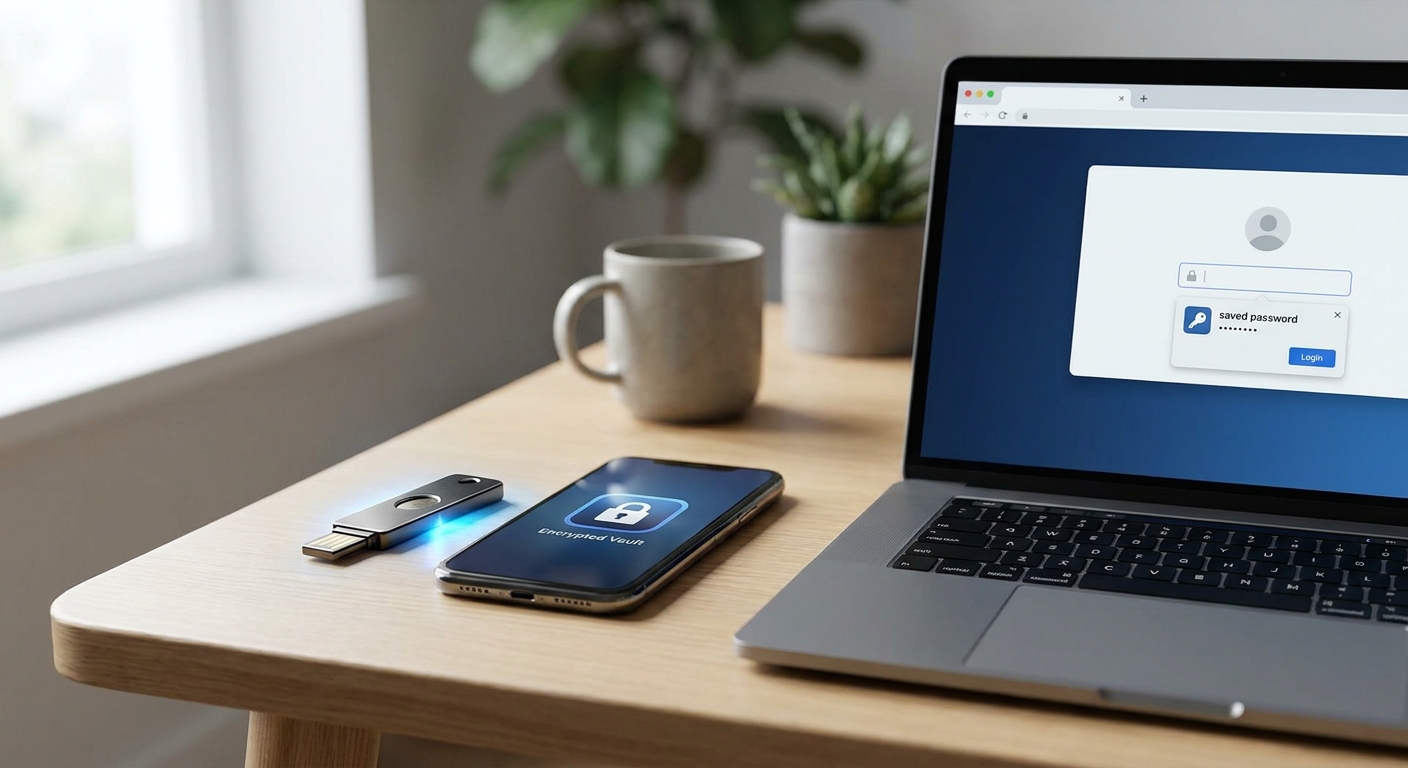
A laptop screen showing a browser password autofill prompt next to a smartphone displaying a dedicated password manager app vault, both on a wooden desk in a bright home office
Laptop and smartphone comparing password manager vs browser autofill login screens
[“password manager”, “browser autofill”, “online security”, “cybersecurity tips”, “digital privacy”]